
IF THE BLUETOOTH OR ECM CONNECTION INDICATORS AT THE TOP OF THE APP SCREEN TURN RED
A. BASIC Level Connection Troubleshooting
1. Ensure driver has vehicle engine powered ON before troubleshooting
2. Confirm that the ECM device is securely connected to the diagnostic port (via cable harness if applicable) and the ECM device has power
HINT: Have the driver inspect the installed ECM device for illuminated or blinking LED lights. If so, the device is receiving power.
3. Open Main Menu and tap Scan Devices and ensure the ECM device appears on the available devices list.
4. Unplug/Plug in ECM device
a) Manually disconnect ECM device from vehicle on the application by scanning for a device and then not making a new device selection
b) Logout from app
c) Unplug ECM device from diagnostic port of vehicle
d) Wait 30 seconds, then plug ECM device back into diagnostic port
e) Login to app*
f) Manually connect vehicle to ECM device on the application once more via Scan Devices from Main Menu
5. *Ensure the user has the latest app version installed. If not, go to Google Play Store (Android) or Apple App Store (iOS) to upgrade app to latest version before reattempting connection
6. Confirm that user’s mobile device has both Location AND Bluetooth permissions enabled for the Apollo application
NOTE: Location permissions must be set to “ALWAYS ON” for the ELD application to function properly and comply with the ELD law
7. Turn Off/On Bluetooth on mobile device
a) Manually disconnect the vehicle to ECM device on the application by scanning for a device and then not making a new device selection
b) Logout from app
c) Turn off Bluetooth on the mobile device, wait 30 seconds, then turn back on
d) Login to app
e) Manually connect the vehicle to ECM device on the application once more
8. Restart or Turn off/on mobile device
a) Manually disconnect vehicle to ECM device on the application by scanning for a device and then not making a new device selection
b) Logout from app
c) Power cycle mobile device by completely shutting down and restarting the device
d) Login to app
e) Manually connect the vehicle to ECM device on the application once more
9. Connect to ECM Device using other mobile devices
a) Manually disconnect vehicle to ECM device on the application by scanning for a device and then not making a new device selection
b) Logout from app
c) Login to a different Mobile Device that has the app installed
d) Manually connect vehicle to ECM device (if successful, the issue may lie with the driver’s original mobile device)
B. ADVANCED Level Connection Troubleshooting
After the BASIC steps above have been done and the device is still not appearing on the Scan Device screen or is still unable to connect, try the following steps to troubleshoot further
1. Perform a Device “Reset”
a) Have the user log out of the HOS application
b) Unplug ECM device from the diagnostic port and let it “reset” for 10 -15 mins
c) Plug ECM device back into diagnostic port and turn vehicle ignition on
d) Log back into the application
e) Make sure the Bluetooth feature is On on the mobile device (cell phone or tablet)
f) Rescan for/ attempt to connect to the ECM device
2. If the ECM device is still not showing on the Scan Device screen or is not connecting after the “reset”. Confirm what type of ECM device the driver is using.
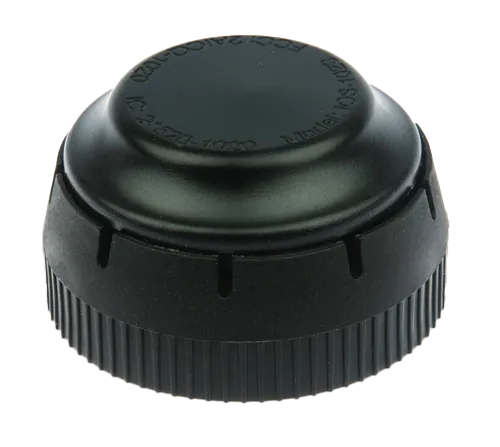
a) If the driver is using a ROUND ECM device (such as the iOSIX device pictured below), a ticket will need to be submitted for further assistance.
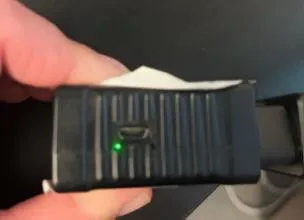
b) If the driver is using a SQUARE ECM device (such as the Geometrics device pictured below), have the driver check what color the small LED light is blinking on the side of the device when the ECM device is connected to the diagnostic port and the vehicle’s ignition is on
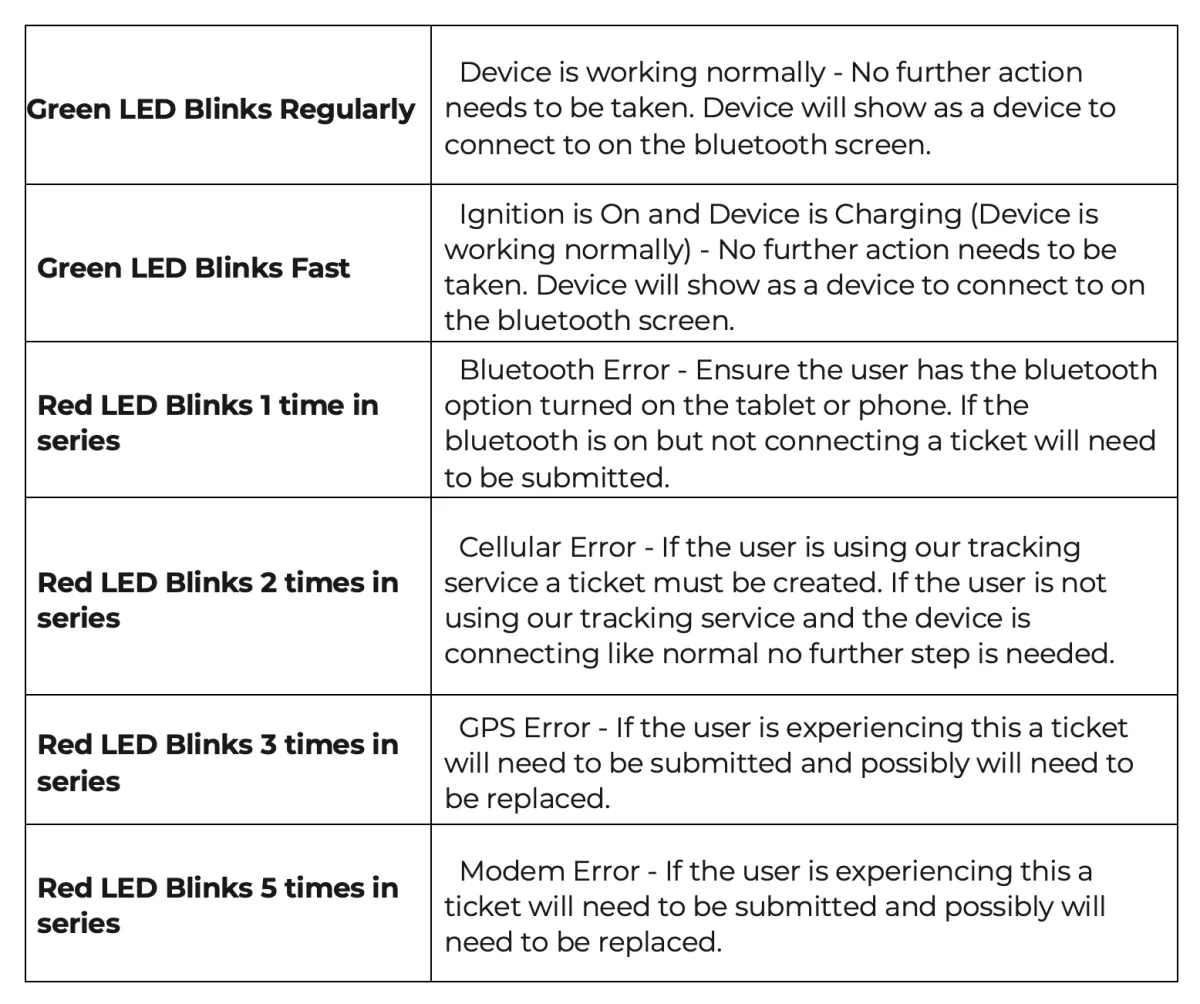
c) See below for a guide to what the colors and sequences of blinking lights indicate specifically on the Geometris model ECM devices
C. EXPERT Level Connection Troubleshooting- After Basic and Advanced steps have been performed without success, a ticket will need to be created.
D. LEGAL references for more information: eCFR :: Appendix A to Subpart B of Part 395, Title 49 -- Functional Specifications for All Electronic Logging Devices (ELDs), Section 4.2:
1. An ELD must be integrally synchronized with the engine of the CMV. Engine synchronization for purposes of ELD compliance means the monitoring of the vehicle's engine operation to automatically capture the engine's power status, vehicle's motion status, miles driven value, and engine hours value when the CMV's engine is powered.
2. An ELD used while operating a CMV that is a model year 2000 or later model year, as indicated by the vehicle identification number (VIN), that has an engine electronic control module (ECM) must establish a link to the engine ECM when the CMV's engine is powered and receive automatically the engine's power status, vehicle's motion status, miles driven value, and engine hours value through the serial or Control Area Network communication protocols supported by the engine ECM or the vehicle's databus. If the vehicle does not have an ECM, an ELD may use alternative sources to obtain or estimate these vehicle parameters with the listed accuracy requirements under section 4.3.1 of this appendix

© 2023 Transcare - All Rights Reserved