
HOW TO CERTIFY LOGS SCRIPT
U. How to certify logs via the driver’s application
Side note: For any logs that need to be edited on the admin portal, the driver will have to certify that log on their application first
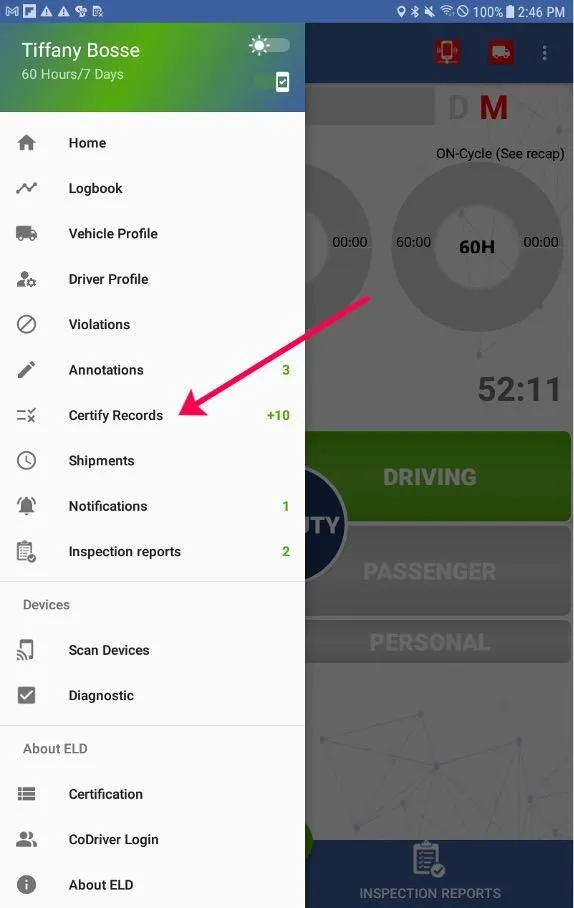
1. Select the Main Menu icon (3 horizontal white lines in the upper left corner)
2. Select Certify Records from the menu.
a) Select which logs you wish to certify:
b) Tapping the green check mark in the top right corner acts as a Select All function to select all uncertified log records so that you can certify them all at once
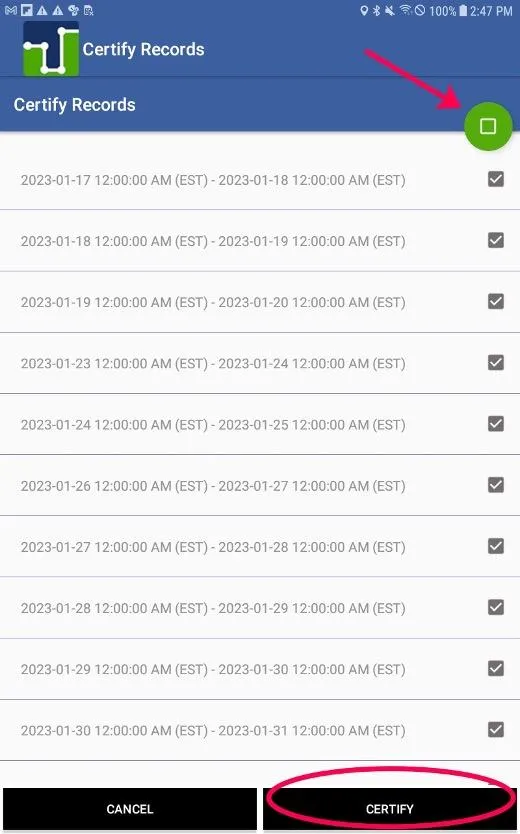
c) You can also select one day at a time by tapping the checkbox next to the specific day you wish to certify
3. Once the driver selects the log(s) they would like to certify, they will tap the Certify button in the bottom right corner of the page
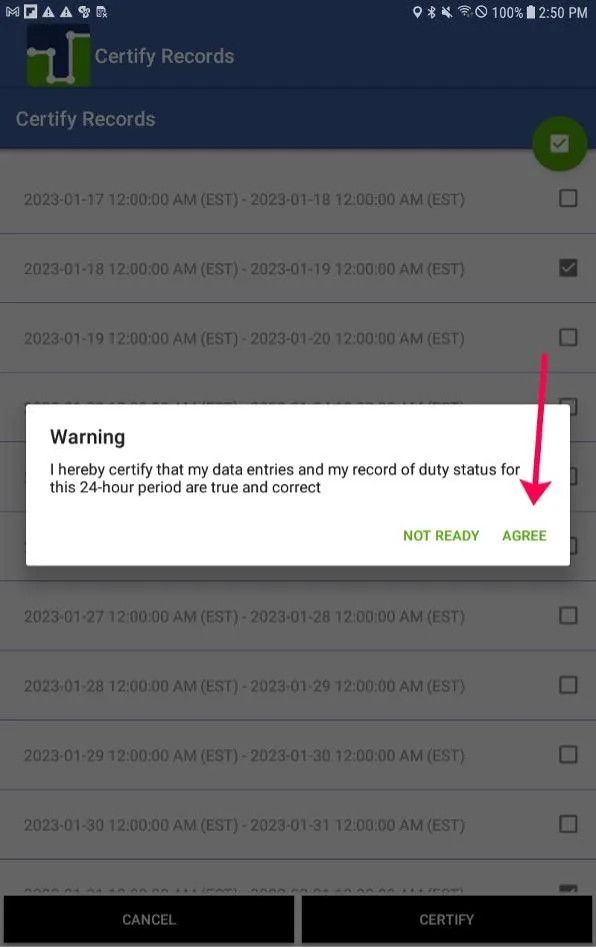
4. A confirmation popup will be displayed asking the driver to verify that they want to certify the selected log(s). They will need to tap on AGREE to do so and finish the certification
V. Again, only once a log is certified on the driver application can it then be edited by the admin on the admin portal

© 2023 Transcare - All Rights Reserved