
EXPORT LOGS TO FMCSA/ TRANSPORT CANADA LAW ENFORCEMENT OFFICIAL SCRIPT
Step by step to carry out pre-ti or inspection before starting work.
1. The driver must press the ON-DUTY status where several options are displayed
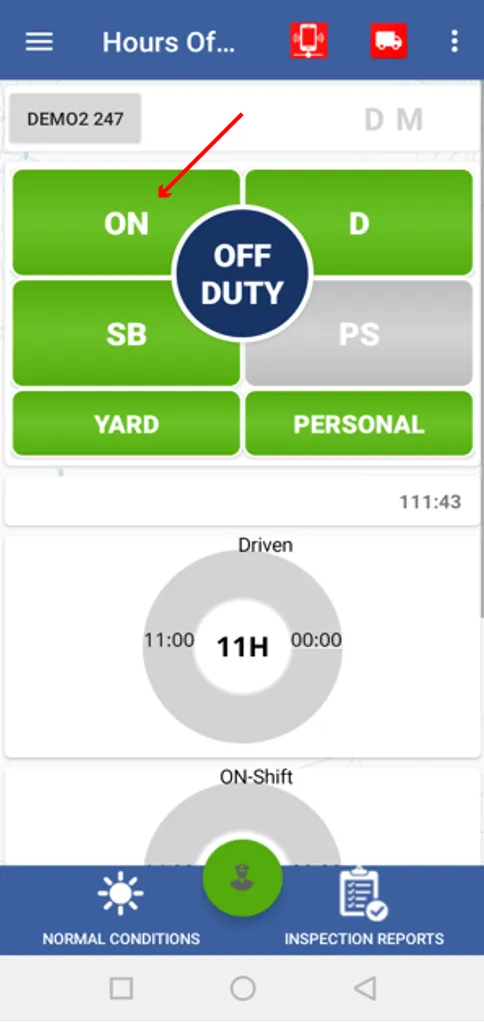
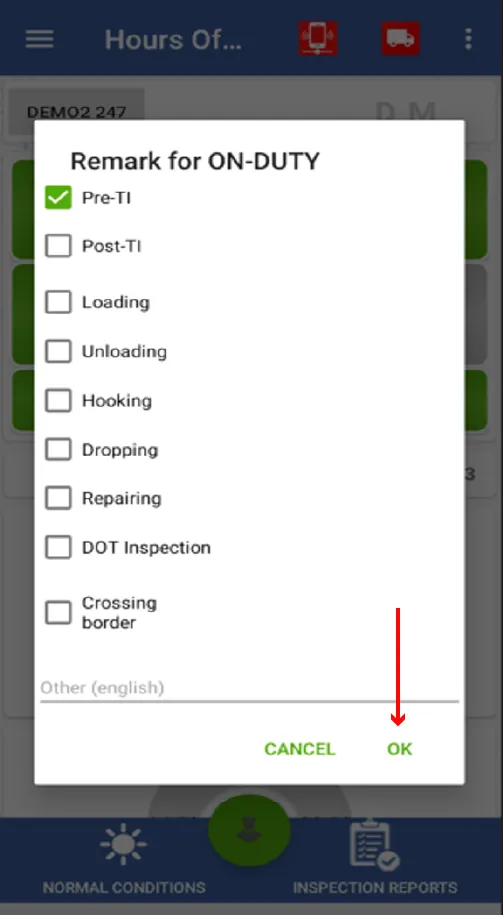
2. Here you must mark the PRE-TI option and press OK
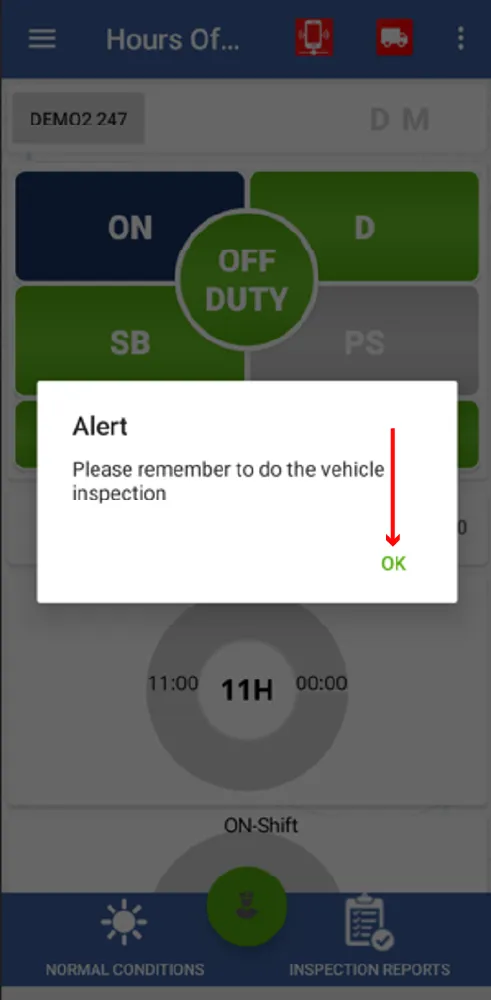
3. This notification will appear reminding you that you must do the inspection here, click OK.
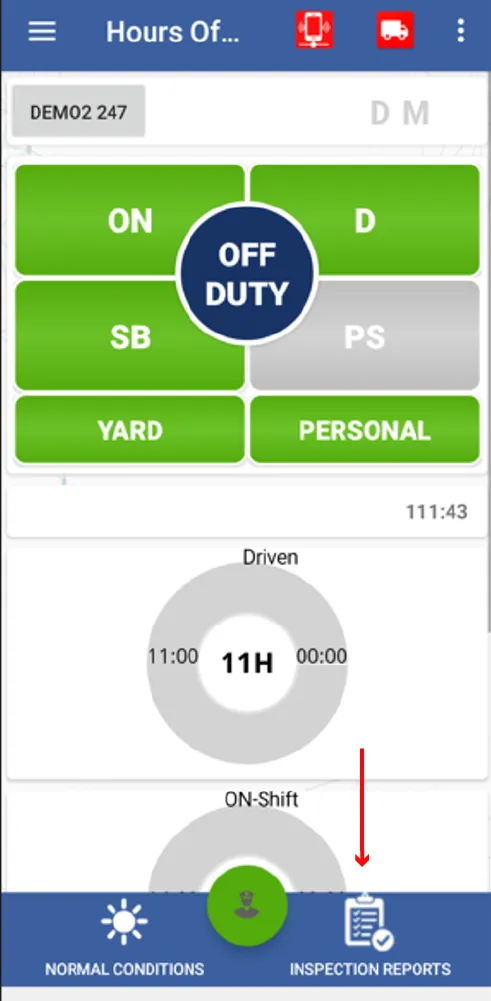
4. On the next screen you must click on the bottom right where it says "INSPECTION REPORTS"
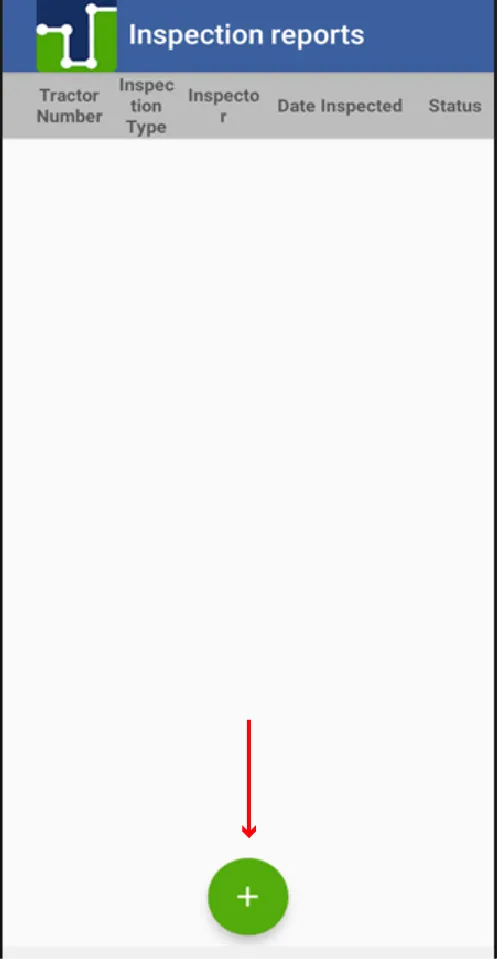
5. Drivers must press the single green icon with a + symbol
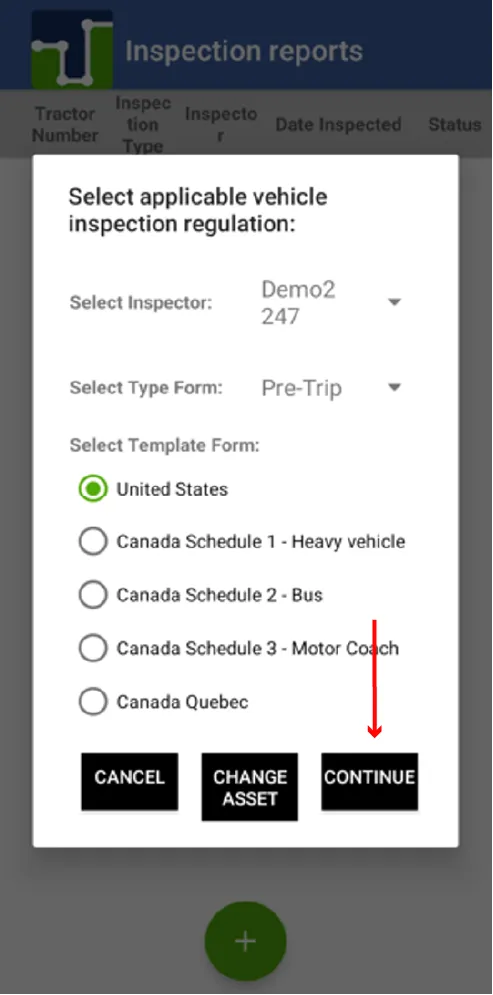
6. The following screen will appear where they must verify the inspection data and they must press continue
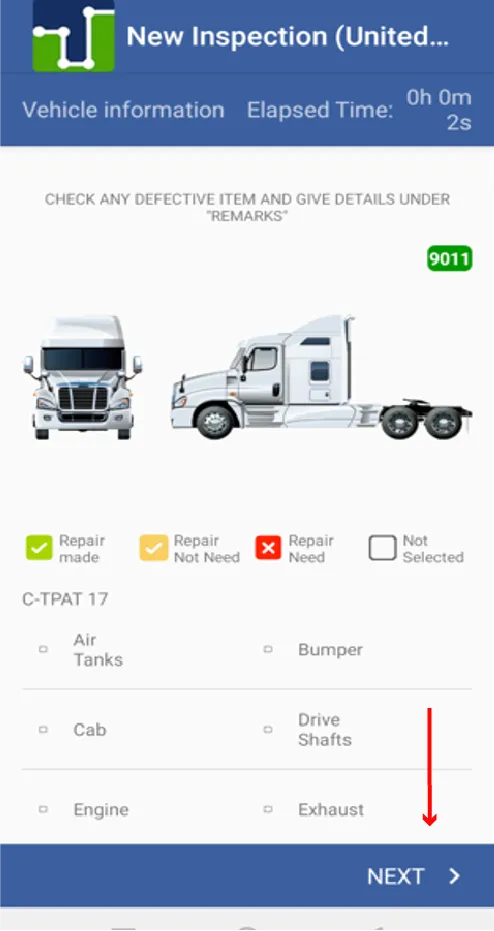
7. The characteristics and components of the tractor appear, if the tractor has any mechanical damage they must press the option and if everything is in order they must press NEXT
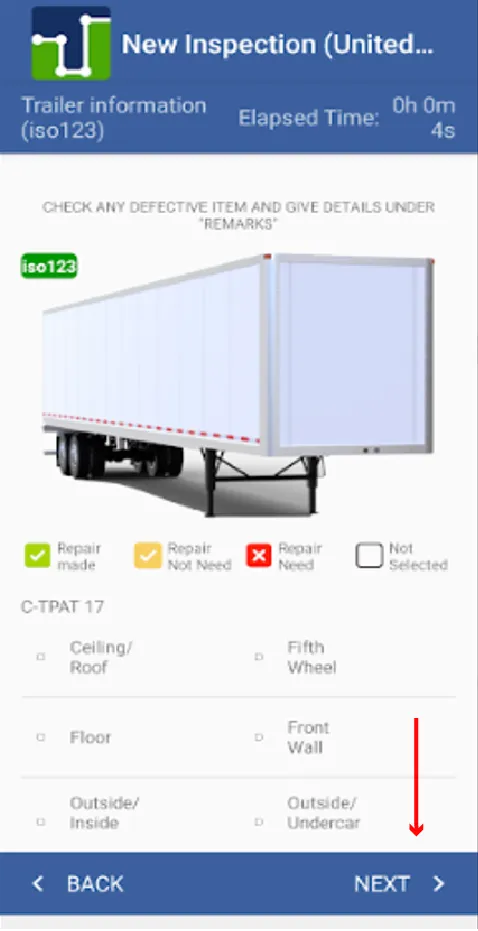
8. The same happens with the trailer, if the tractor has any mechanical damage they must press the option and if everything is in order they must press NEXT
9. The following screen will appear where you will place the stamp number in serial number and you must add a signature in the lower left part where a pencil appears.
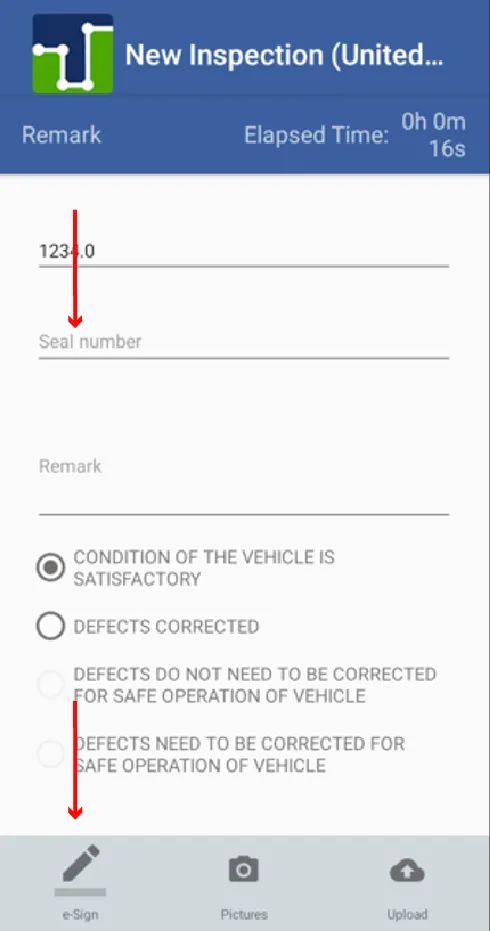
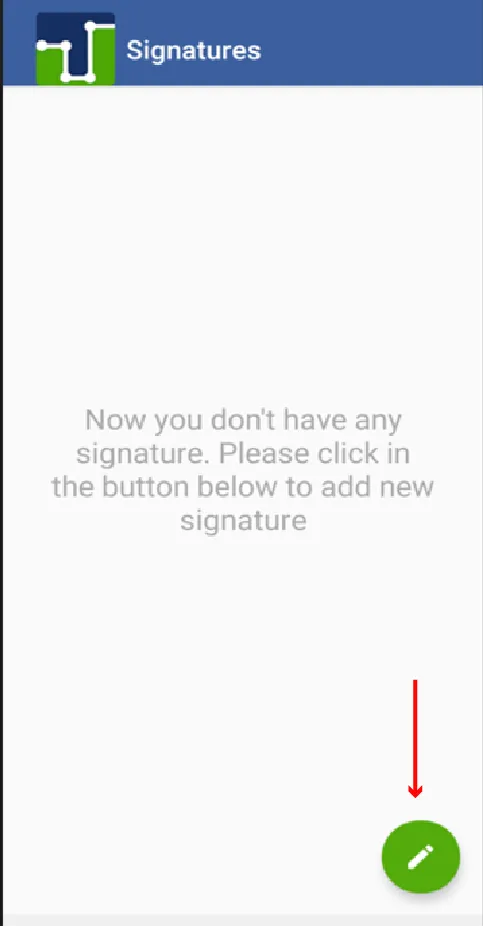
10. After selecting the pencil option to add the signature, the following appears:
Here you must press the green option with the symbol of a pencil.
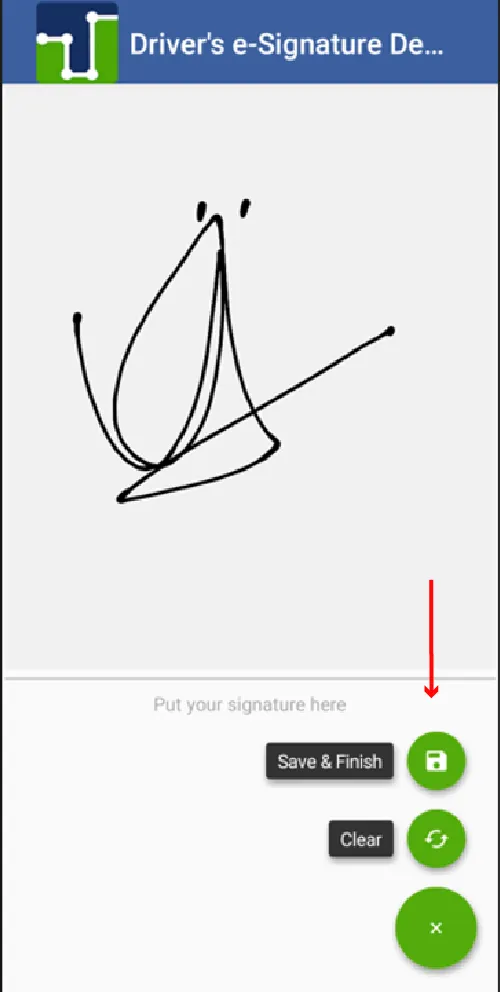
11. Then the screen appears for the driver to register your signature with your finger and you must press the symbol at the bottom right for SAVE & FINISH
12. Here it appears that the signature was saved successfully and you must press go back on your phone or tablet.
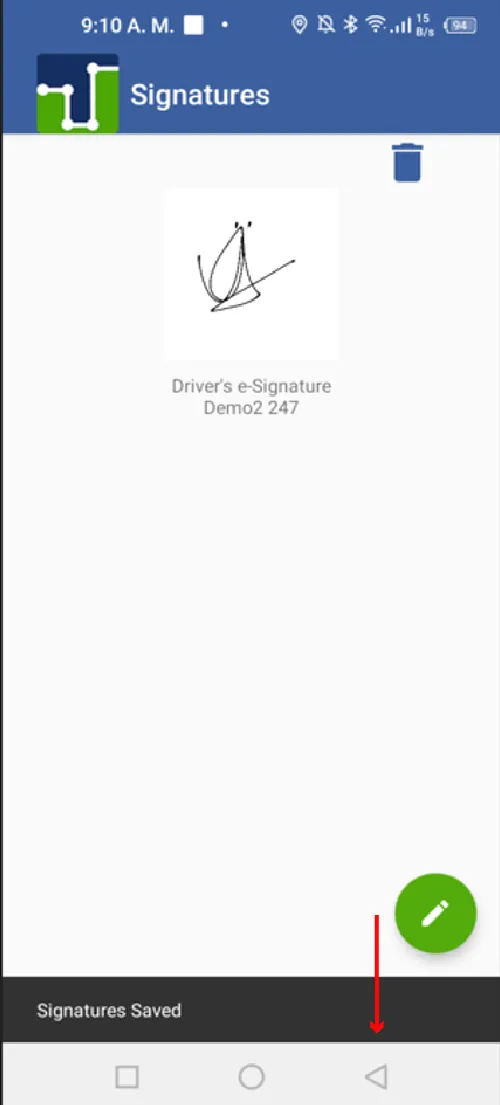
13. When you press the back key, this screen appears again where you must press the cloud icon to be able to upload the inspection carried out.
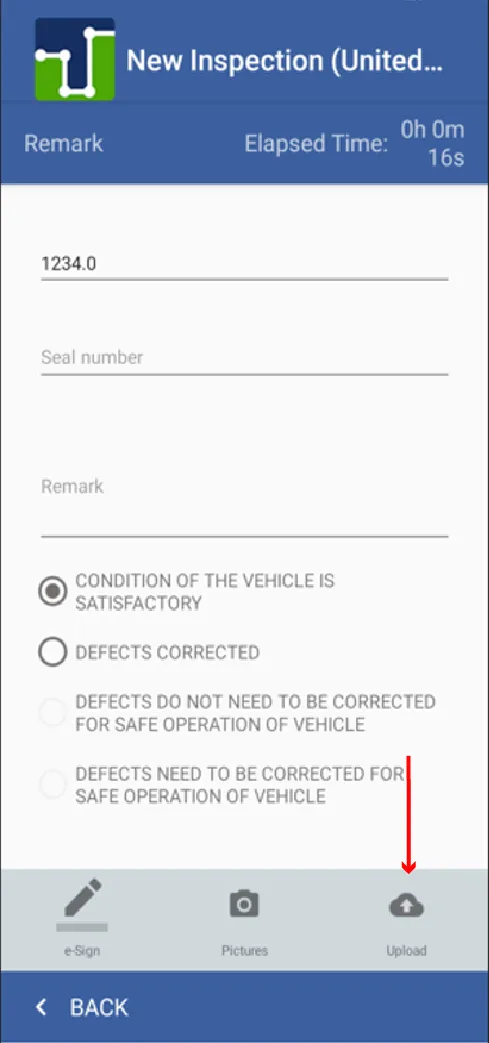
14. A confirmation appears if you want to upload the inspection report you must press ok
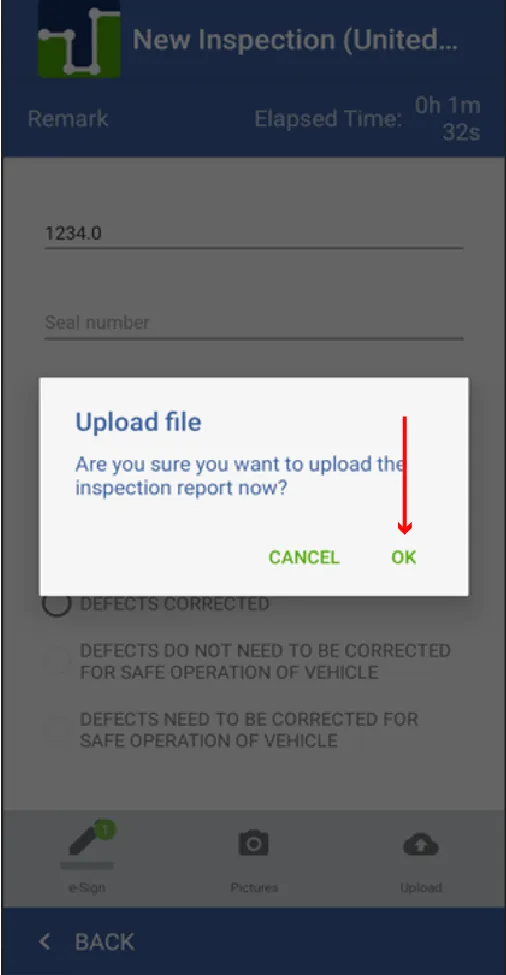
15. A PDF file of the inspection carried out appears.
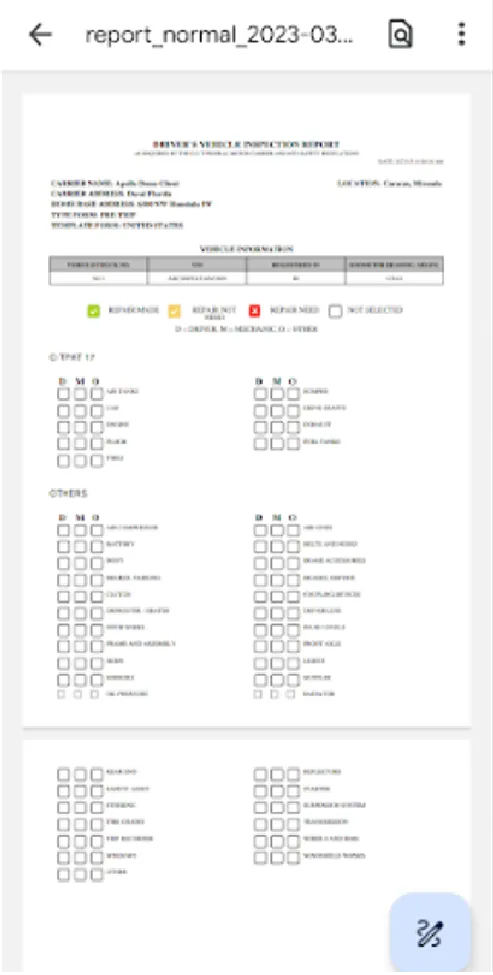
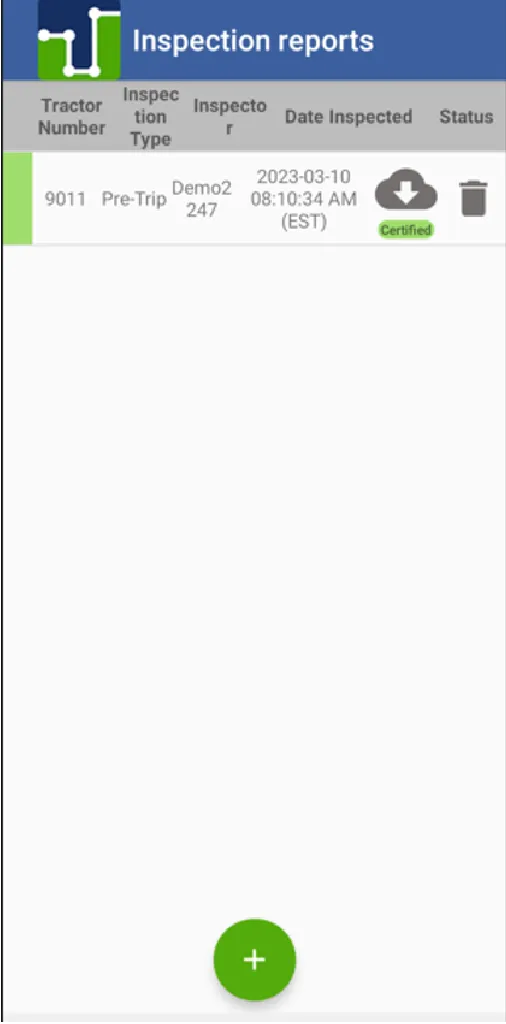
16. Then the inspection report was uploaded successfully and the inspection process ends.

© 2023 Transcare - All Rights Reserved