
LOGBOOK
The ELD portal is certified compliant with both the US and Canadian ELD regulations.
Export Log Records:
Export Print-Display Logs in PDF format
Export ELD Data File in CSV format, OR directly transfer to U.S. or Canadian agency
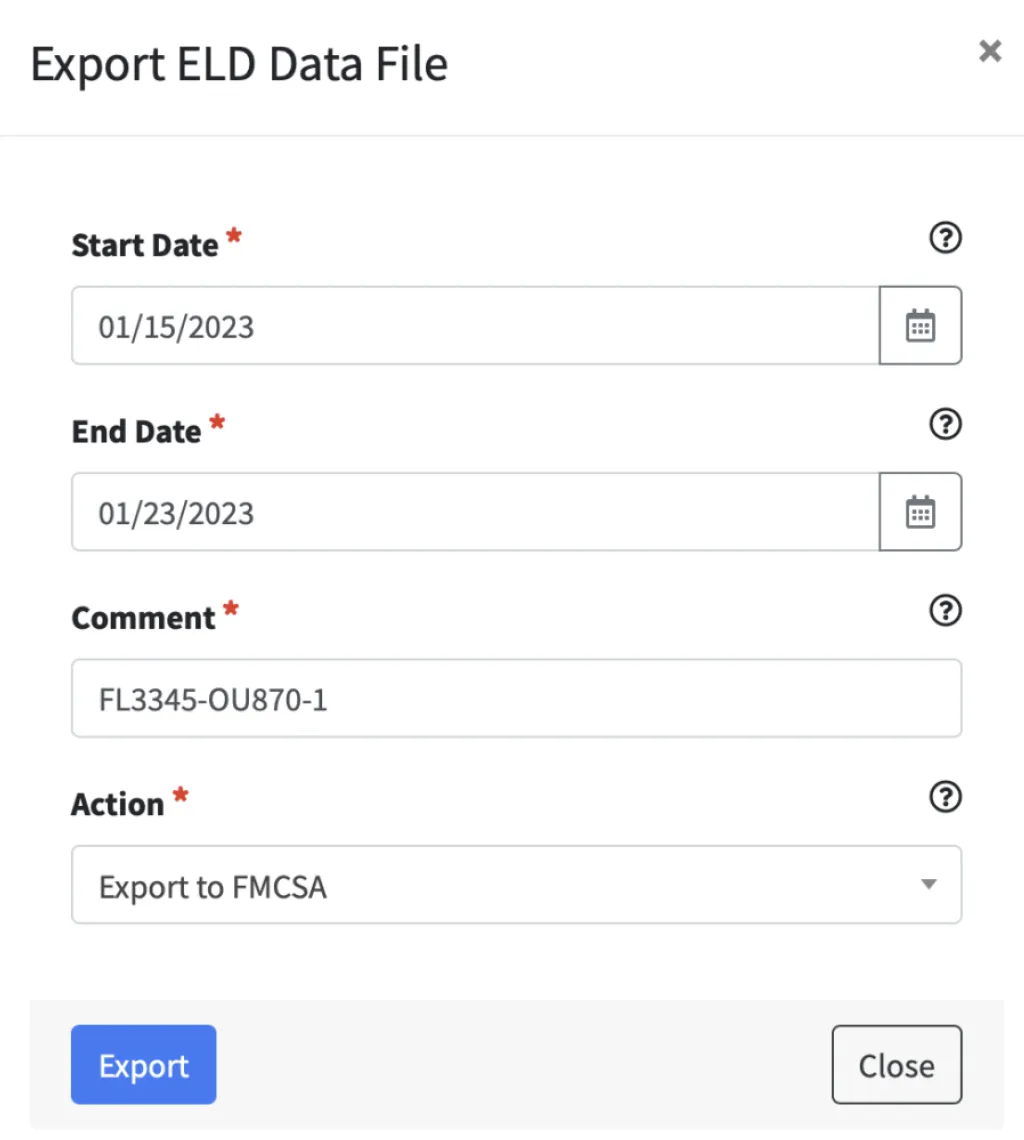
To export the ELD data file to FMCSA.
Select USA on the Region dropdown menu.
Select the driver whose logs you wish to transfer
Execute the logbook
Click on Export ELD Data File
Select the date range in question
Enter the routing code provided by enforcement into the Comment field
Select Export to FMCSA on the Action dropdown
Click on Export. If the export process completed without issues, you will receive a submission ID. Please write it down and share it with the auditor if needed. If errors occurred during the export process, you will see the exact description of the error, which will give you a chance to make changes and try to export the ELD data file again.
Follow the same process as above to export the ELD data file to a Canadian agency, EXCEPT first select Canada under the Region dropdown
View Log Records
1. Use the Region dropdown menu to pick the country you want to see this information for. A log can be viewed in either region regardless of where the vehicle actually traveled. This just impacts the type of information shown based on each region’s regulation requirements.
2. Search for a Driver by entering first or last name or username
3. Select the Date for the log records you wish to view
4. Click on Execute to see the Driver’s Daily Log records displayed on screen
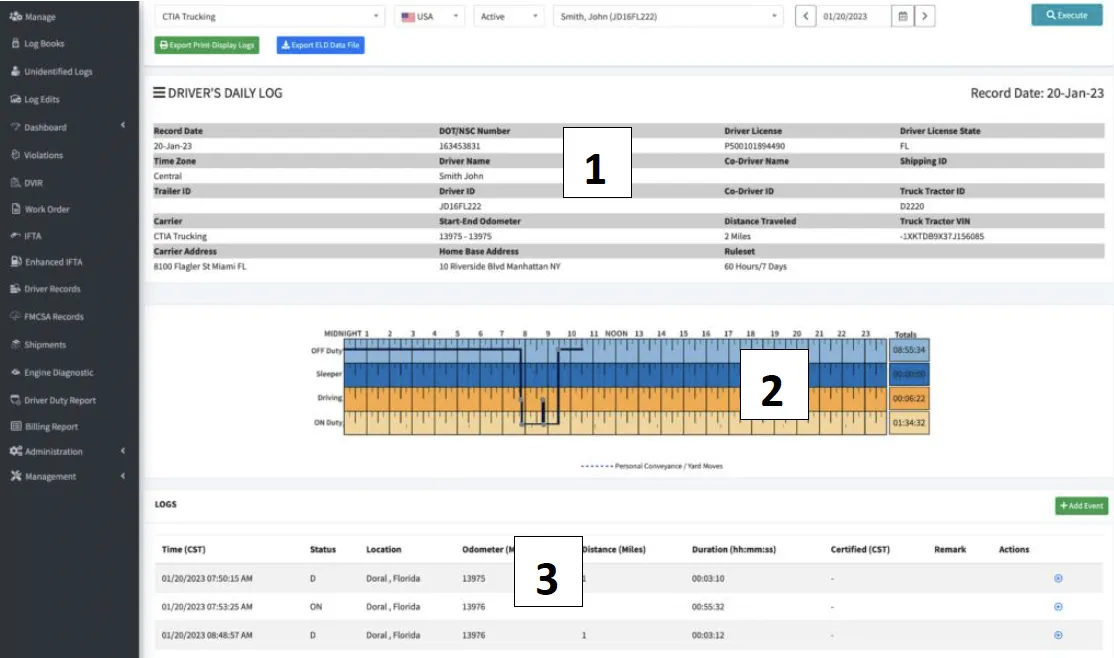
Log Header
Includes general information about the carrier, driver, co-driver, vehicle and trailer, and shipment(s). Total distance is displayed as a calculated value using the difference between Start and End Odometer values for that date.
Graph Grid:Visually displays all duty status changes and total time in each status for the given 24-hour period
a. Special driving categories of Personal Use (personal conveyance) and Yard Moves will show plotted with a dotted blue line
b. If a driver was operating under an exemption for a specified time period, the graph will show that period plotted with a dotted red line.
Log Event Details: All log events for the 24-hour period are listed here with all required data elements for each event.
a. Certified column: Will indicate whether the driver has certified this event
b. Remark column: Will display any remarks associated with each event
c. Actions column: Will allow you to either add a remark or edit/ delete a specific log event (if allowed)
Execute the logbook
Click on Export ELD Data File
Select the date range in question
Enter the routing code provided by enforcement into the Comment field
Select Export to FMCSA on the Action dropdown
Click on Export. If the export process completed without issues, you will receive a submission ID. Please write it down and share it with the auditor if needed. If errors occurred during the export process, you will see the exact description of the error, which will give you a chance to make changes and try to export the ELD data file again.
Considerations for Editing Log Events in the Portal:
To edit an event in the Portal, it must first be certified by the driver. If it is not certified, the edit and delete buttons will not be available.
The current duty status of a driver cannot be edited
You cannot add the same duty status twice in a row. For instance, if you have a transition from an Off Duty status to an On Duty status and now need to add a status in between the two, the new status cannot be Off Duty nor On Duty. The best option here is to edit the start time of either event as needed.
The start date and time are the best parameters to modify on an existing duty status
Automatically recorded driving time cannot be shortened in any way as per ELD regulations. Consider adding a Remark to explain mistake or incidental Driving time
The timestamp for an automatically generated driving event cannot be changed
Keep in mind that if you remove a duty status you are increasing the duration of the previous duty status
Once an edit is made on the admin portal it is sent to the driver for approval on the application. The driver can then accept or reject the edit. If accepted, it will go into effect on the logs.
How to Create Carrier Proposed Log Edits from the Portal:
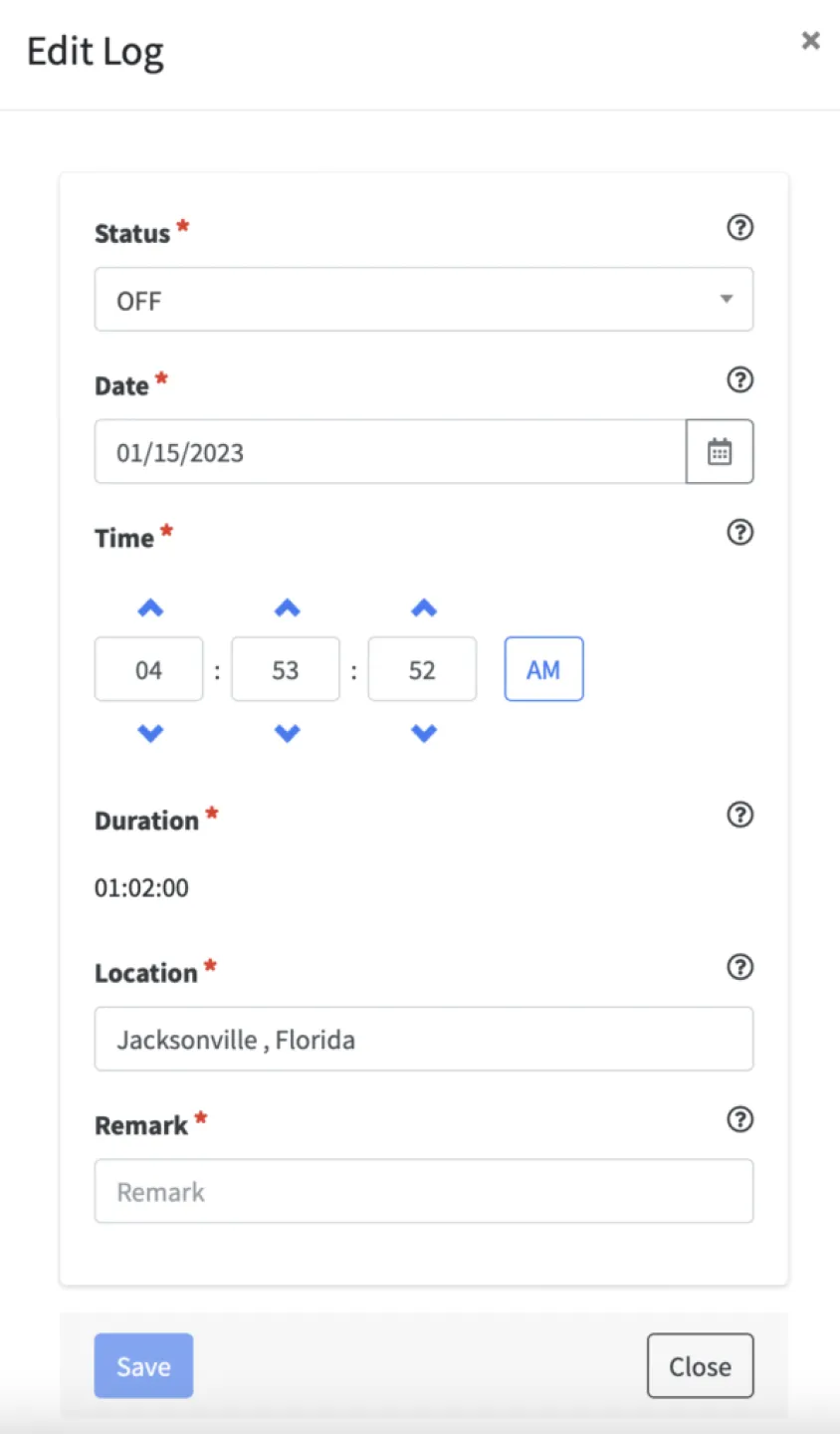
1. To edit a specific log event, click on the blue pencil icon next to that event

2. On the Edit Log pop up, click the dropdown to change the duty Status. Only the duty statuses that are allowed under each specific scenario will be available.
3. Use the Date and Time fields to adjust the start time of the event
4. Use the Location field to edit the location of the log event if needed
5. Input a Remark or comment explaining the edited entry
6. Click Save This change is called a Carrier Proposed Log Edit. This proposed change will be shared with the driver, who can decide to reject or assume the carrier proposed log edit. Specific information regarding carrier proposed edits can be seen under the Log Edits menu option.

© 2023 Transcare - All Rights Reserved