
IFTA - ENHANCED IFTA
The Driver Records report gives you a full insight of everything that’s happened on any ELD for a chosen timeframe, including driver login/logouts and any ELD data diagnostic or malfunction.
To run the report:
Select a Driver from the dropdown
Select a date range on Start-End Date
You can also optionally filter by Event Origin, Type and Code
The Driver Records report gives you a full insight of everything that’s happened on any ELD for a chosen timeframe, including driver login/logouts and any ELD data diagnostic or malfunction.
To run the report:
Click Execute to view search results. Information is sorted by date and the time when the record was created. Alternatively you can click on any column header to re-sort the results based on that criteria
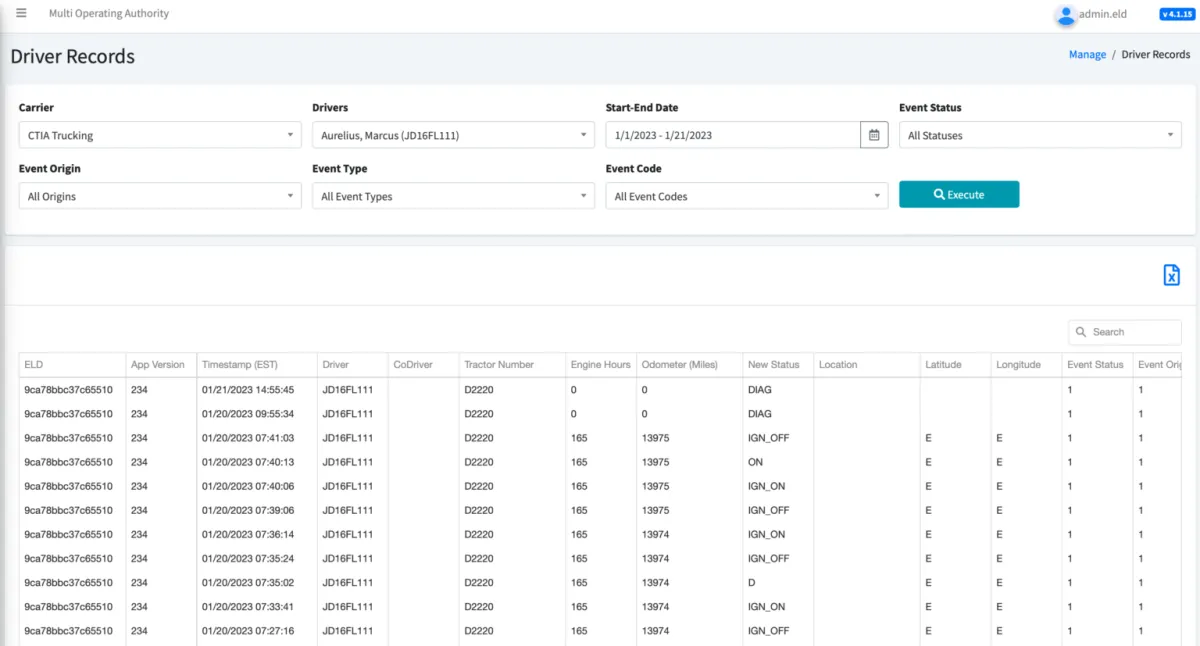
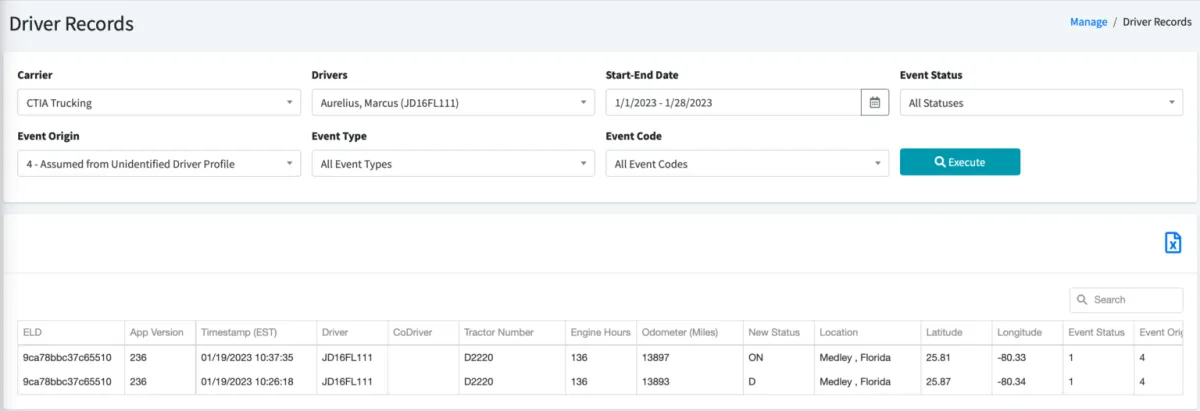
Example 1: Searching for unidentified driving time assumed by a driver
1. Select the specific driver from the Drivers dropdown
2. Select a Start-End Date
3. Select option #4, assumed from unidentified driver, on the Event Origin dropdown
4. Execute the report
You can see the ELD ID where the driving time was generated, the app version, the time when the driving time was generated, and the vehicle name.
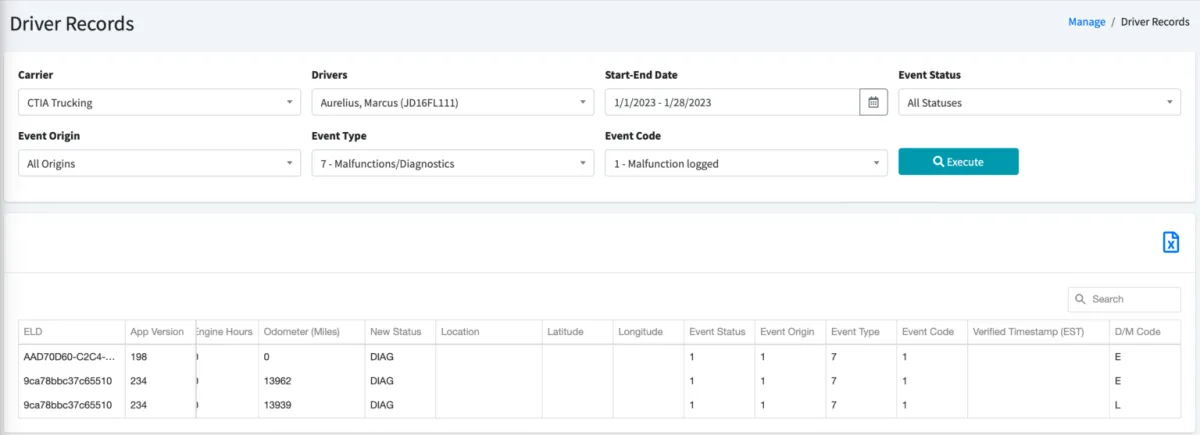
Example 2: Understanding why the Logbook doesn’t show engine hours and accumulated driving distance
1. Select the Driver
2. Select a Start-End Date
3. On the Event Type select item number 7, malfunctions and diagnostics
4. For Event Code select malfunction logged
5. Execute the report
6. Check for odometer and engine hour recordings and diagnostic events
Additional information:
Event Status:
“Active”: This record is currently active and will show on the driver’s Logbook and ELD data file export
“Inactive-Change”: This record was deactivated by the driver directly on the ELD app during a log edit and will not appear on the driver’s Logbook. However, it is always included on the ELD Data File during export
“Inactive-Change Requested”: The carrier proposed this record by editing a log on the ELD Portal
“Inactive-Change Rejected”: This record is inactive as a result of a carrier-proposed edit that was rejected by the driver. This record will not appear on the driver’s logbook, but it is always included on the ELD Data File during export
Event Origin:
“Automatically Recorded”: This event is generated automatically by the ELD without driver interaction. Examples of this type of event include automatic driving, intermediate log events recorded every 60 minutes while the vehicle is moving, malfunctions, and more
“Edited or Entered by Driver”: This is an event manually created by a driver
“Edit Requested by other than Driver”: This type of event is usually a carrier-proposed log edit assumed or rejected by a driver
“Assumed from Unidentified Driver Profile”: This event origin refers to Driving and On Duty events automatically generated by the ELD while no drivers were logged into the app, and which have then been assigned and assumed by the driver
Event Type:
“A change in driver duty status”
“An intermediate log”: Log check-in events triggered every 60 minutes while the vehicle is moving · “Personal Use or Yard Moves”
“Driver’s certification”: This event shows log certifications performed by drivers for previous days’ logs
“Driver’s login/logoff”
“Engine On/Off”: This event is generated when the RPMs on the vehicle exceed 300 (engine on) or decrease under 300 (engine off)
“Malfunction/Diagnostic”: This event is created when the ELD fails to operate as required by regulations
“Off-duty time deferral”: This event applies to Canadian operation only and is generated when a driver decides to defer up to 2 hours of Off Duty time for the next day
“A change in driver’s cycle”: A driver operating in Canada changed cycles between 70 hours in 7 days or 120 hours in 14 days
“A change in operating zone”: A driver changed operating zones between Canada South, Canada North, US or Alaska
“Additional hours not recorded”: N/A
List of Diagnostics and Malfunctions
Diagnostics:
1. Power Data/Compliance Diagnostic (ECM parameters must be available within 1 minute of powering the vehicle’s engine on)
Resolution: Make sure you are connected to the ECM device. On the menu, go to Scan Devices and select your ECM device. Make sure all engine parameters pass the diagnostics (all green)
2. Engine Synchronization Data Diagnostic (not all ECM parameters are available when the ELD records an event e.g. duty status change)
Resolution: Make sure you are connected to the ECM device. On the menu, go to Scan Devices and select your ECM device. Make sure the diagnostic passes all engine parameters (all green)
3. Missing Required Data Elements Data Diagnostic (other required data e.g., location/coordinates not available when recording an event)
Resolution: Make sure the GPS module is enabled on your ELD
4. Data Transfer Data Diagnostic (An ELD must verify this functionality at least once every 7 days)
Resolution: Verify that you have an active cellular or Wi-Fi connection at all times. Confirm that your logs are always updated on the ELD portal
5. Unidentified Driving Records Data Diagnostic (more than 30 minutes of driving without a driver logged on the ELD)
Resolution: You are not logged on the ELD and the vehicle moves for an extended period. Please log in and select your Driving time
6. Other ELD identified Diagnostic (ELD provider may implement additional, technology-specific malfunction and data diagnostic detection schemes)
Malfunctions:
Most malfunctions relate to a Diagnostic, but a malfunction is generated when the same diagnostic occurs for at least 30 minutes in the last 24 hours:
P- Power Compliance (related to diagnostic)
E- Engine Synchronization Compliance (related to diagnostic 2, for instance multiple periods of no ECM data that, when added together, are more than 30 minutes in the last 24 hours)
T- Timing Compliance (the timestamp on the ELD compared to an external time source are different)
Resolution: Make sure the date and time on your mobile device is properly set. DO NOT manually change the date or the time on your ELD
L- Positioning Compliance (no location available, related to diagnostic
R- Data Recording Compliance (monitor storage capability to store records)
Resolution: Make sure you have sufficient internal storage on your ELD. Delete files if necessary
S- Data Transfer Compliance (ELD records not able to be uploaded)
Resolution: You probably do not have internet access. Restart the ELD (if needed) and confirm you reconnect to the network
© 2023 Transcare - All Rights Reserved